


TypeR 3.0 is the biggest update TypeR has had. Your whole loop now fits in one gesture: click a bubble, the line is pasted, styled and fitted, and the next one is ready.
Everything below was filmed in the real panel, in Photoshop or in the web version. Click a clip or a picture to see it bigger.
- Faster: click paste, smart paste, double and triple bubbles
- Smarter: TextShapeR, FontScanR and Font FindeR
- Everywhere: native in Photoshop 2025+, the web version
- Yours: tabs, themes and layout, settings you can search
Upgrading? Your styles, profiles and settings come with you. And the full changelog is at the bottom.
Click paste
Forget the Paste button. Turn on Click paste in the footer, and any selection drops the current line.
- Magic Wand, rectangle or lasso: each one pastes at once.
- Made a mistake? Undo in Photoshop and the line goes back in your script.
- A double bubble TypeR missed? Click it again: the line and the next one split, one per part.
Smart paste
Paste now reads the bubble's real outline, not its bounding box.
- Lines follow the silhouette, and the ink is centred inside the outline.
- Your size comes first. It only shrinks if it has to, down to a minimum you set (75% by default).
- Black bubbles get white text without a stroke, automatically.
- Shout and narration styles: mark one per folder, and spiky bubbles and narration boxes picked with the Magic Wand use it. A script prefix always wins.
- Hyphens are a last resort, and they follow your script's language.
Auto clean
Optional: TypeR paints the bubble under the text on a TypeR Clean layer, on solid white or black only. Ctrl+H shows or hides those layers.
Double and triple bubbles
One click fills every part with the next lines, in a single history step.
- Every part gets its line, centred, even if it has to overflow.
- Align knows them too: each text is centred in its own part instead of on the neck of the whole bubble.
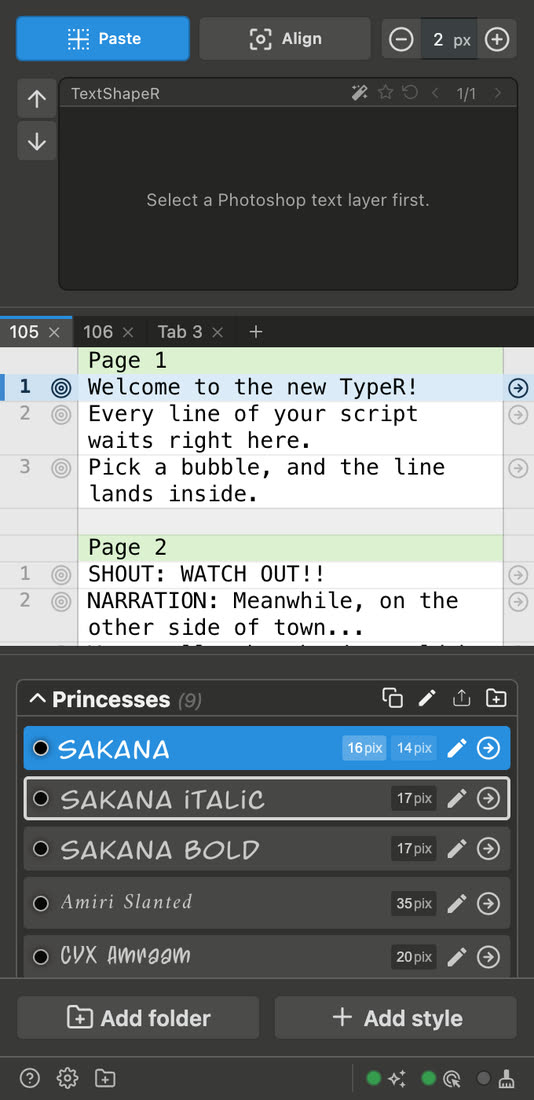
TextShapeR
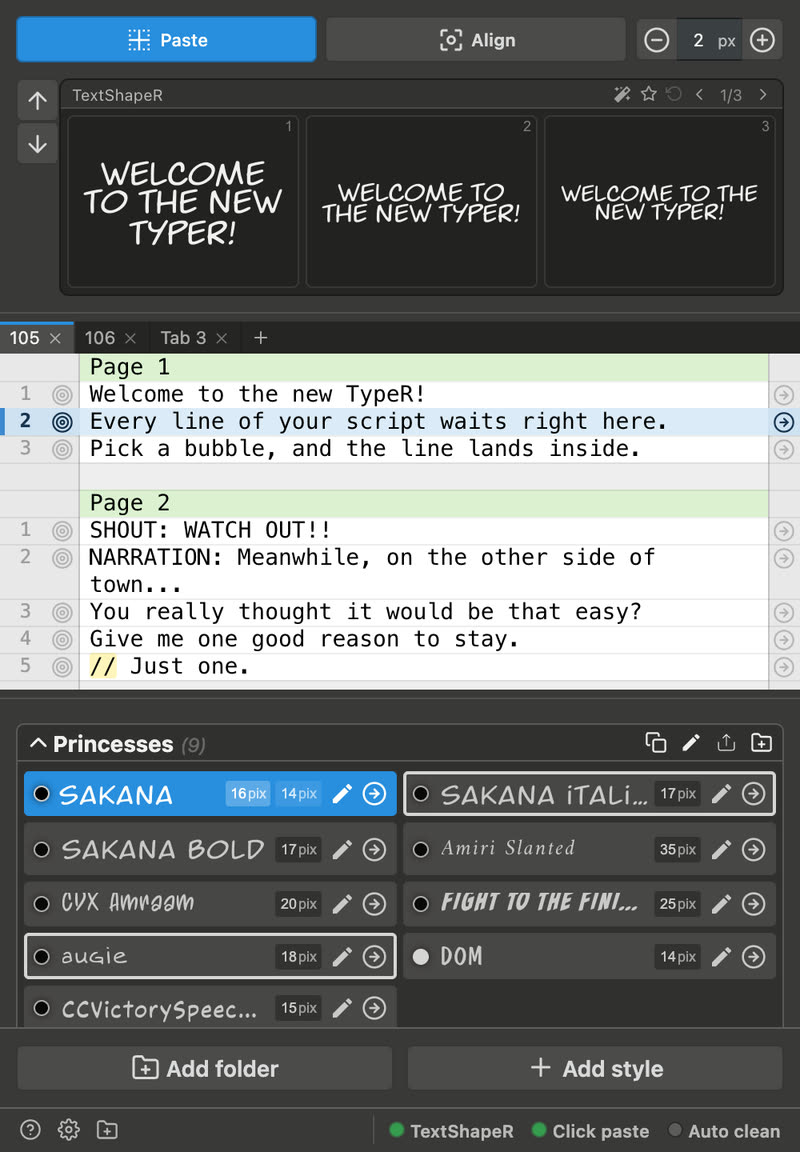
It proposes every good way to break the current line, best first, right in the panel.
- Trained on about 3,000 hand-lettered bubbles, so the first proposal follows how letterers actually break lines.
- Click to apply, Shift+click to apply and move on.
- Nine languages for hyphenation, detected from the text. Scripts that don't hyphenate, like Arabic, are never cut.
It learns your style
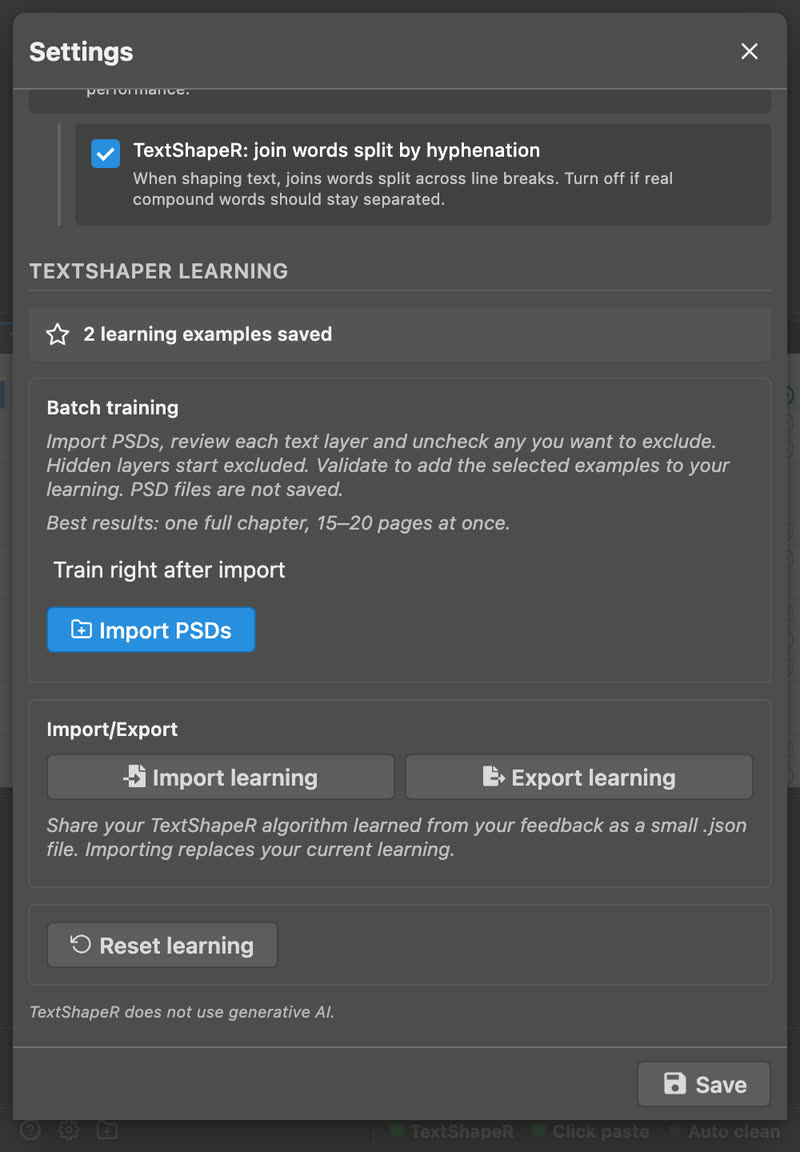
Star the shapes you like, and the next suggestions follow them.
FontScanR and Font FindeR
Stop rebuilding styles by hand, and stop hunting for fonts.
- FontScanR reads your finished PSDs and turns their font, size, colour and stroke into ready-made styles.
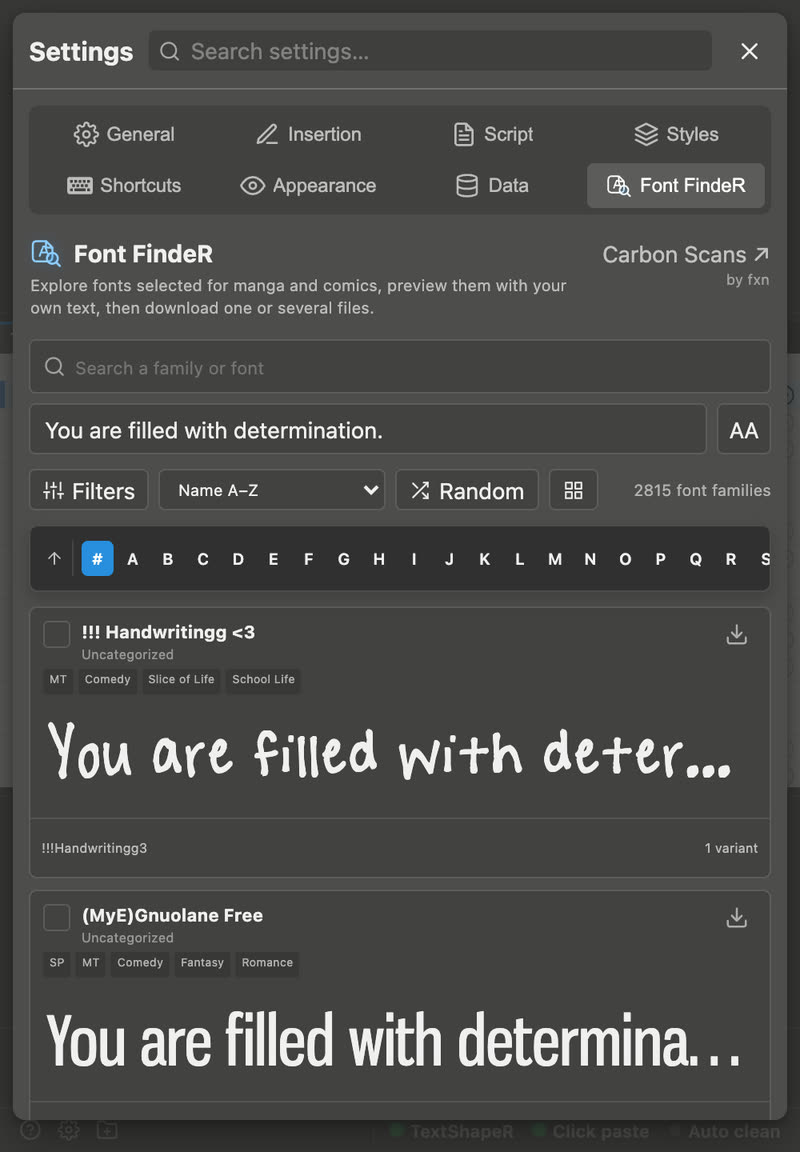
- Font FindeR searches a catalogue, previews with your own line, and installs in one click.
- Missing a font? FontScanR and style imports look it up for you, and offer to install all the matches at once.
- Photoshop tool presets: import your
.tplfiles, each one becomes a style folder.
One tab per chapter
Each tab keeps its own script, current line and PSD folder, so chapters and teams never mix.
- They name themselves after the PSD folder or the chapter heading, until you rename them.
- Drag to reorder, + to add one.
Native in Photoshop 2025 and later
The new TypeR is a UXP plugin: same panel, same styles, but faster and native on Apple Silicon, without Rosetta. It opens from Plugins > TypeR.
- Your work comes with you. Styles, profiles and settings are imported the first time it starts, and the originals stay untouched.
- Pick your edition with the arrow keys. The installer finds your Photoshop and marks the right one.
- Creative Cloud is optional. With it, updates from the panel apply without restarting Photoshop. Without it, they load at the next start.
- Older Photoshop? The Legacy edition runs back to CC 2015, with the same features.
One command installs it:
# Windows, in PowerShell
irm https://raw.githubusercontent.com/ScanR/TypeR/master/get.ps1 | iex

# macOS, in Terminal
curl -fsSL https://raw.githubusercontent.com/ScanR/TypeR/master/get.sh | bash
The web version
TypeR now works without Photoshop. Its real panel and paste engine run in your browser, in a Photoshop-like workspace.
- Open and save PSD files. Everything stays on your computer.
- Nothing to install, in 18 languages, and it adapts to phones and tablets.
- It's in beta. One difference: Font FindeR can't install fonts from a browser, so you load the font file yourself.
Make it yours
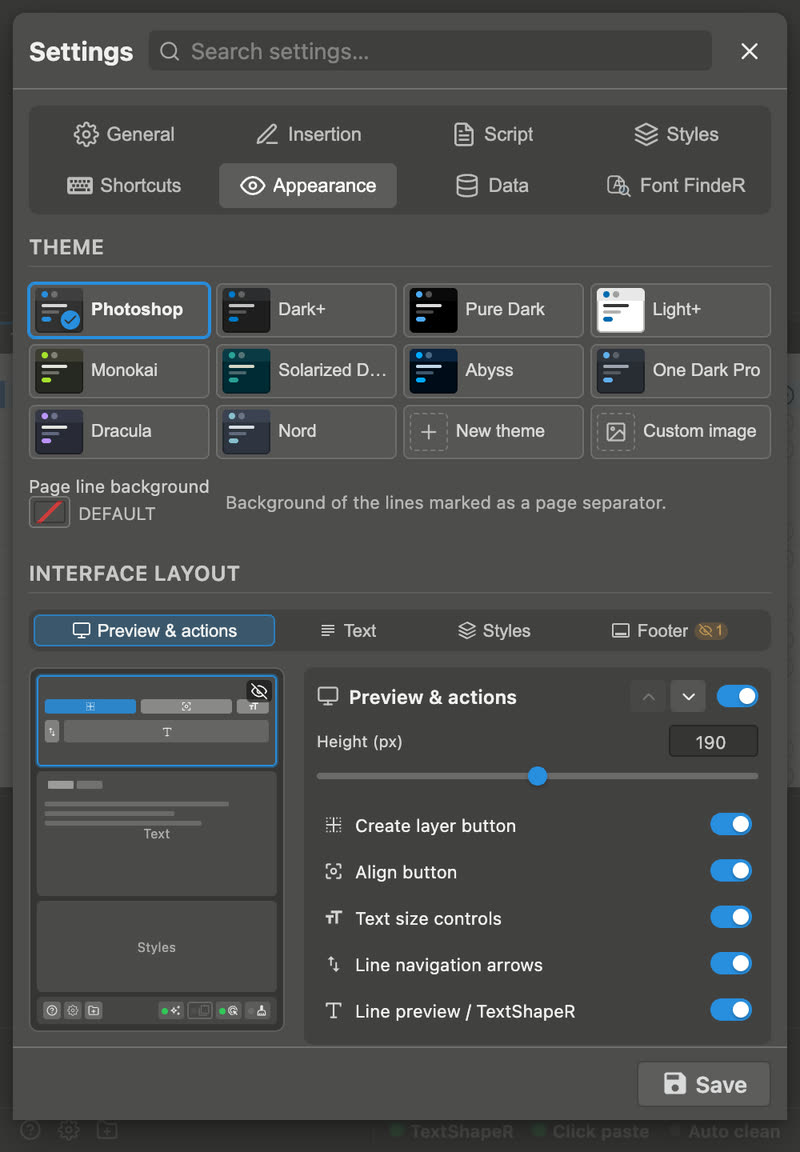
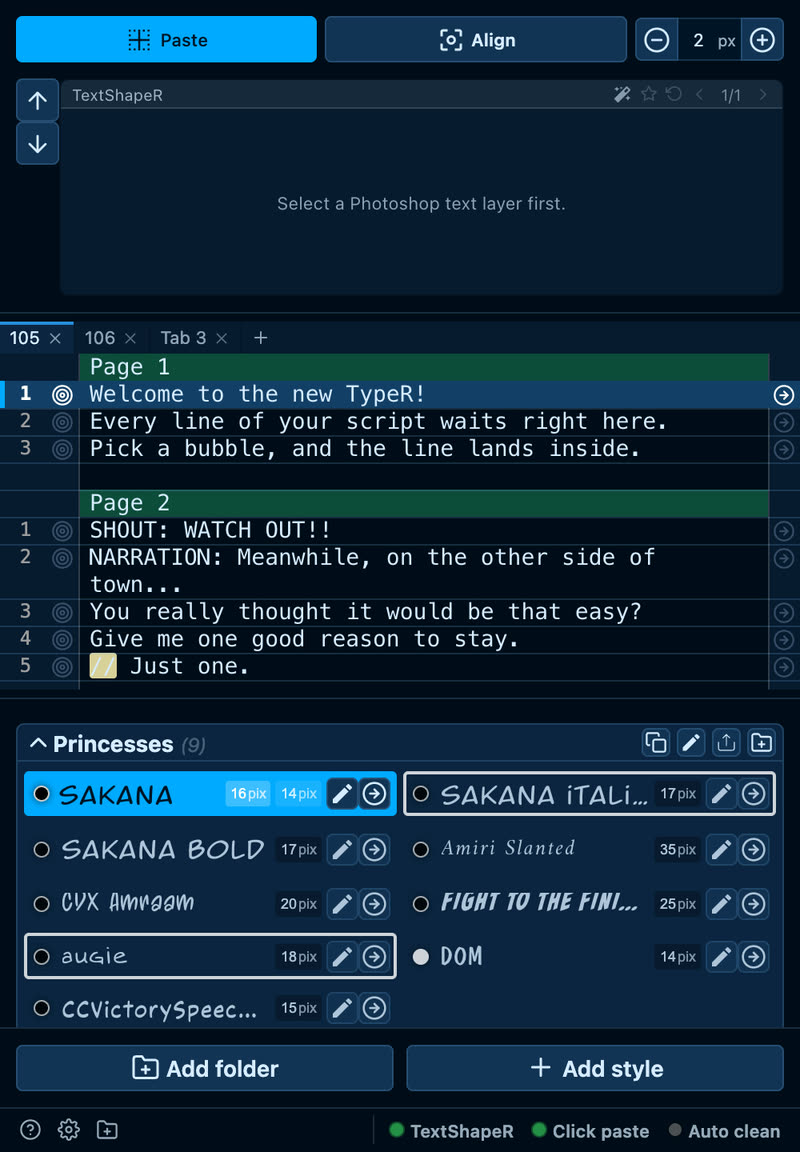
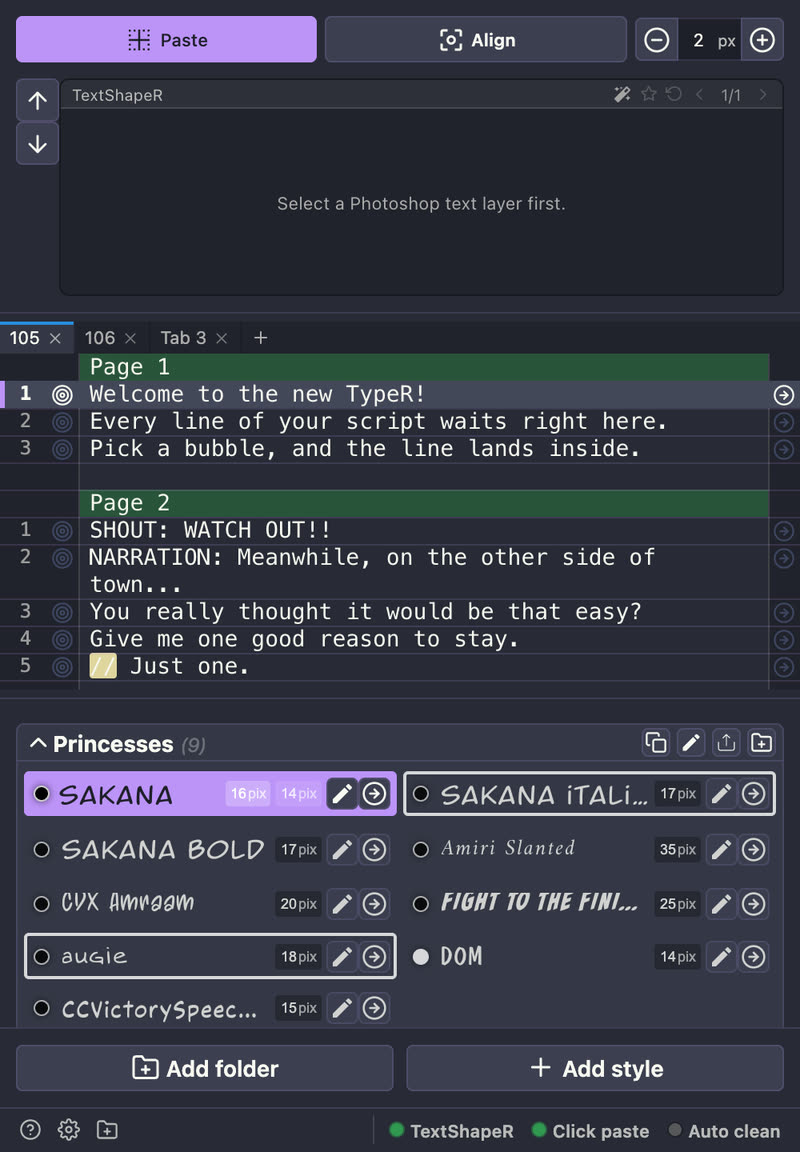
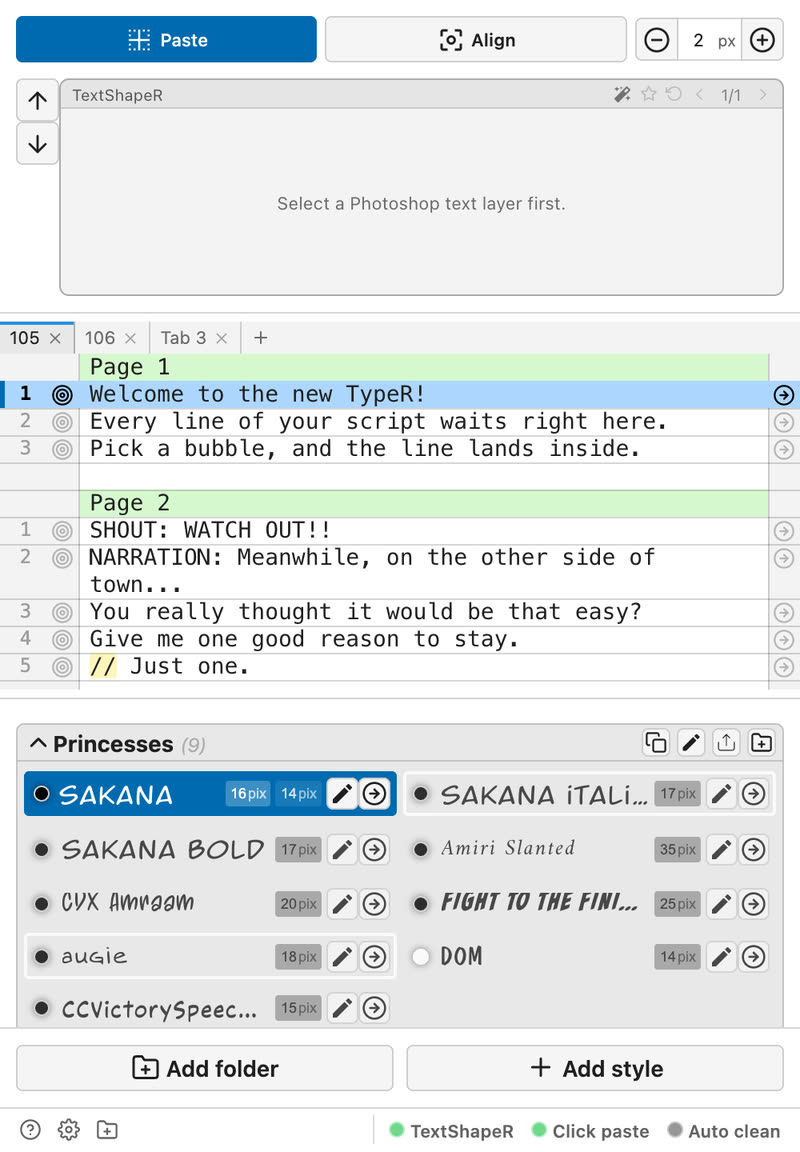
- Themes, custom colours and your own background image.
- Interface layout: every element has its own switch, and hidden ones stay outlined in the preview, so one click brings them back.
- Any panel width: the footer switches to icons instead of being cut off.
- Interface scale, with a reset button.
Settings you can search
- Search by title, description or option, in your language or in English.
Cmd/Ctrl+Fjumps to it. - Reorganized tabs: each setting now sits next to the ones acting on the same thing.
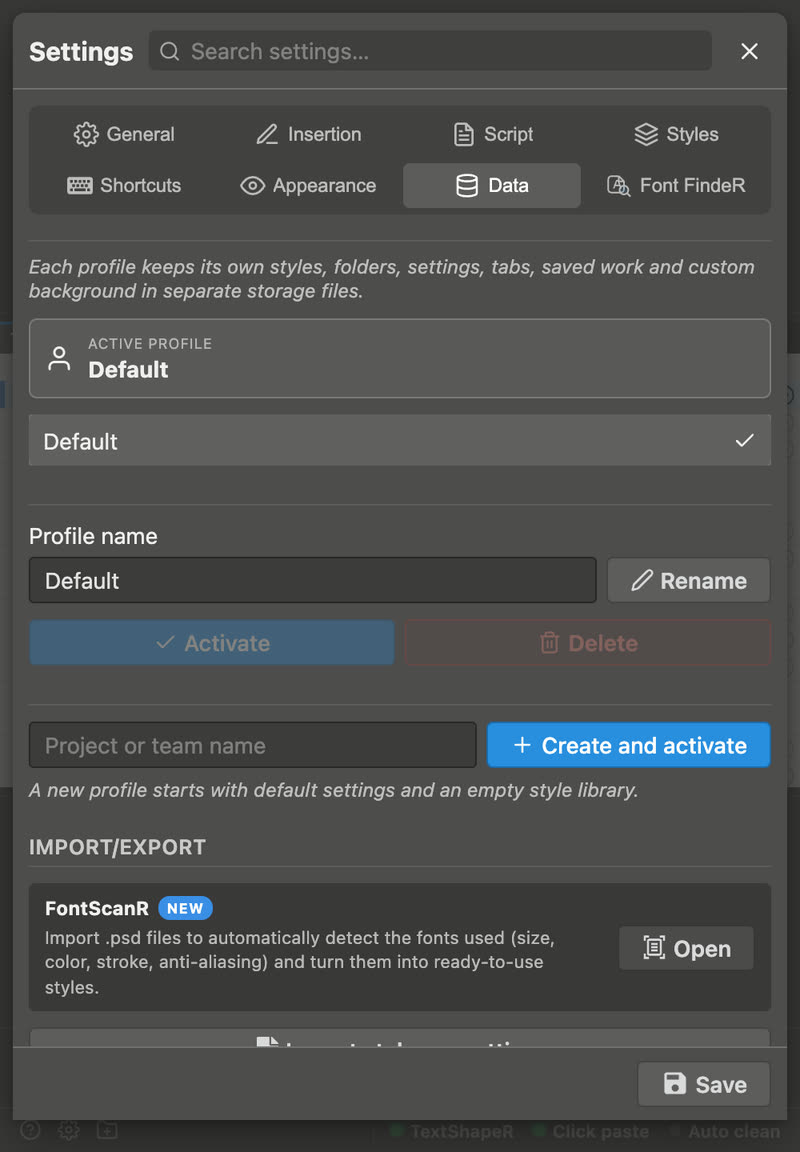
- Project profiles keep styles, folders, settings, tabs and backgrounds apart.
Learn it by doing it
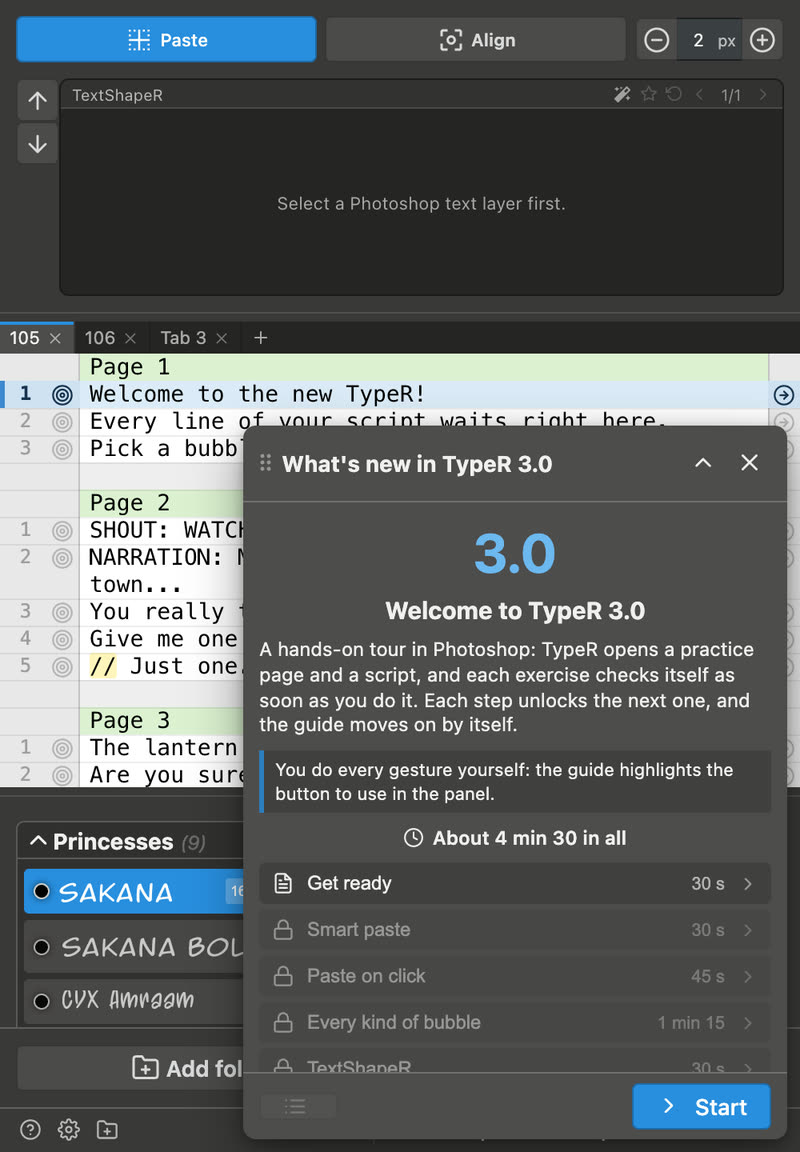
A guide floats over the panel, rings the real control, and checks each exercise as you do it, on a practice page. It never does the gesture for you.
- What's new: 7 chapters, about 4 and a half minutes, shown once after you update.
- Walkthrough: the basics in 8 chapters for new users, followed by What's new.
- Skip anything you already know, and pick up where you left off.
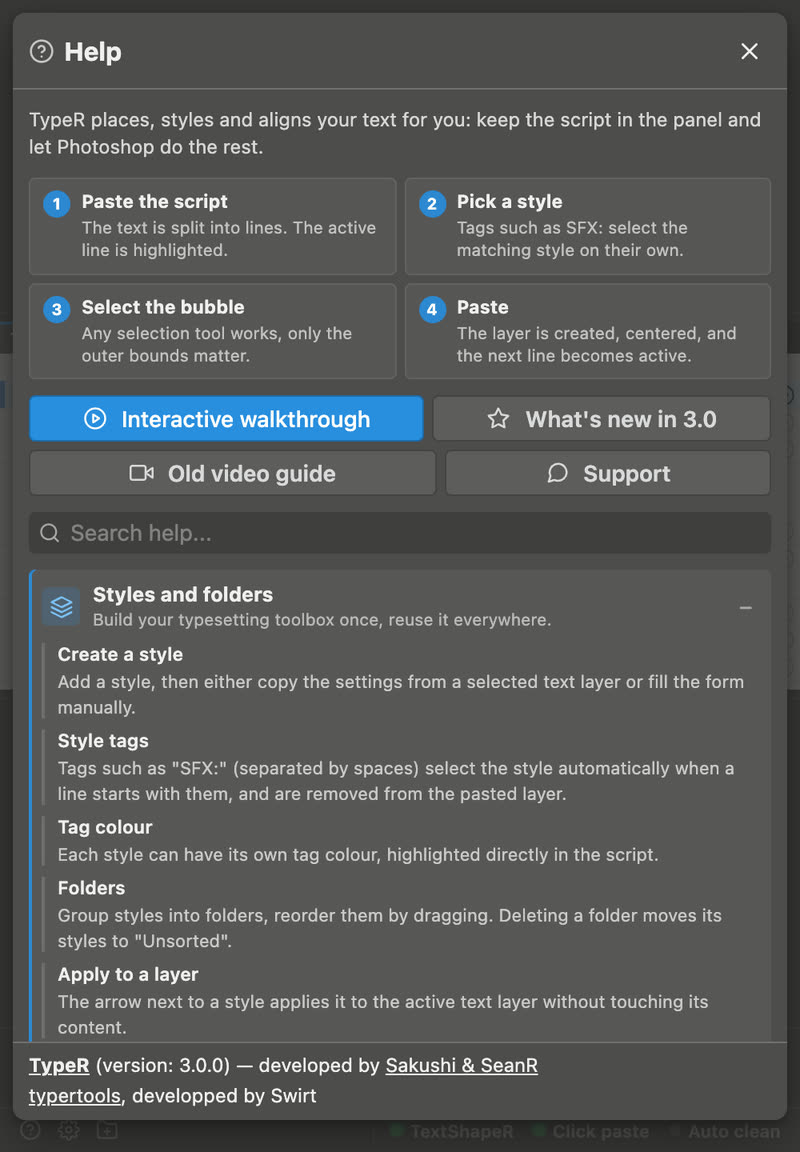
- Help is searchable now, and "Did you know?" tips point out the hidden gestures.
Shortcuts
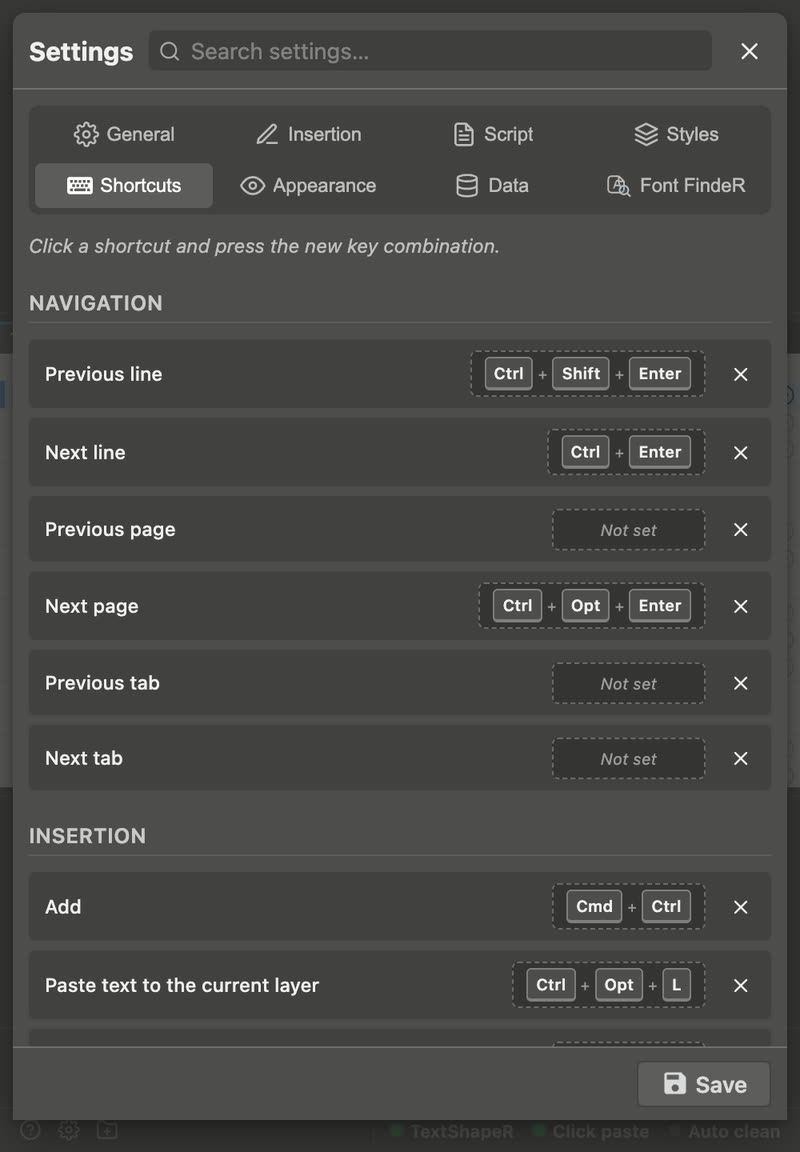
Shortcuts no longer fight with Photoshop.
- Modifier-only shortcuts (
Win+Ctrl,Win+Shift,Win+Alt) run when you release them, soCmd+Shift+Zand friends stay safe. - New defaults where Photoshop also reacted. Your custom ones are kept.
- Mouse buttons 4 and 5 can be assigned, and the numpad picks styles 1 to 9.
Your work is safer
- Saves can't half-happen: TypeR writes through temporary files and keeps a last valid backup.
- Imports are checked first, with a backup made beforehand.
- Batches roll back: if one fails, Photoshop's history is restored.
- Updates are verified before anything is replaced, and a failed install restores the previous one.
The full changelog
Every change since 2.5, by area.
Native plugin and install
- New UXP plugin for Photoshop 2025 and later (
TypeR-UXP.ccx), native on Apple Silicon. - Imports the styles, profiles and settings of a Legacy install on first start, and keeps its data outside Photoshop's version-specific folders.
- Global shortcuts through a small keyboard reader, which also reports mouse buttons 4 and 5 on macOS.
- Bubble shapes read from the selection mask, with no history state left by reads.
- Fixed size changes on layers with floating-point colours and on rich text, and FontScanR on documents with a background layer.
- Updates install from the panel through Creative Cloud's installer, or by hand. Through the installer, the panel reloads without restarting Photoshop.
- Works without Creative Cloud: the installers and the panel extract and register the plugin themselves, and it loads at Photoshop's next start.
- Installers open with an arrow-key menu that finds Photoshop and marks the recommended edition. The archive includes the plugin, so it installs offline.
- One-command install on Windows and macOS.
install_mac.commandcan be double-clicked, and macOS scripts no longer needchmod. - A
.DS_Storefile no longer breaks a release build or a Legacy install. - Installers skip Creative Cloud's installer when the app is missing, and stop waiting for it after a minute. On Windows, they fall back to a direct install.
- The Legacy panel offers the switch to the new TypeR, in one click, when Photoshop can run it.
- Once the new TypeR is installed, Legacy is called "TypeR (old)", and says where to find the new one at each start.
Smart paste
- Fits the text to the real outline, keeps the style size when it fits, and shrinks as little as possible otherwise, down to a minimum size (75% by default).
- Lines follow the silhouette, and the ink is centred inside the outline.
- One French or English hyphen is allowed, only as a last resort.
- Black bubbles get white text without a stroke.
- Shout and Narration styles per folder, used on spiky bubbles and narration boxes picked with the Magic Wand, unless the line has a prefix. A rectangle or a lasso keeps the line's style.
- Double and triple bubbles get the next lines in one history state. Every part gets its line, centred, and the padding no longer applies along the limit between two parts.
- Hyphenation follows the script's language, and a word with an apostrophe can break ("quel-qu'un").
- Optional Auto clean on a
TypeR Cleanlayer (solid white or black only), with a shortcut to show or hide cleaning layers. - Conditional refont gives the text between two markers another style's font.
- A bubble too small for the padding keeps the text inside: the padding gives way, then the margin. Otherwise the classic paste runs, with a short notice.
- Center after paste is now a setting of the classic paste only.
- Multi-bubble batches go through smart paste.
- Align centres each text in its own part of a double or triple bubble, and a single text goes to the part it sits in.
Click paste
- A Magic Wand click, a rectangle or a lasso pastes the current line at once (footer toggle and shortcut).
- Undoing a TypeR paste puts the script line back.
- Clicking a bubble again right after it got one line splits it, for double bubbles that weren't detected.
TextShapeR
- Suggests line breaks in the panel, ranked for the bubble from the selection or the detected outline, with an optional inline mode.
- Ranks shapes from about 3,000 hand-lettered bubbles. The previous ranking's favourites stay as alternatives.
- Learns from the shapes you star, with batch training on your own PSDs and import, export and reset of what it learned.
- Keeps the hyphen of real compounds ("Dis-moi", "Qu'est-ce"), can break at that hyphen, and offers cuts on short words and after an elision, without letting one lead when a clean shape exists.
- Detects the text's language and breaks by its rules: French, English, Spanish, Portuguese, Italian, German, Turkish, Russian and Ukrainian. Scripts that don't hyphenate, such as Arabic, are never cut.
- Fixed learning that could suddenly degrade suggestions after many lessons.
- Undo history is preserved during its scans.
Fonts
- FontScanR turns the fonts of finished PSDs into styles, with size, colour, stroke and anti-aliasing.
- Font FindeR searches a catalogue, previews with your line and installs in one click.
- Missing fonts are looked up on Font FindeR from FontScanR results and style imports, from the exact PostScript name to looser searches. Install one family or all the matches at once. Close matches are marked as such, and a font it doesn't have gets a button that searches
<name> fonton Google. - Random draws from the whole catalogue, or from the current search and filters.
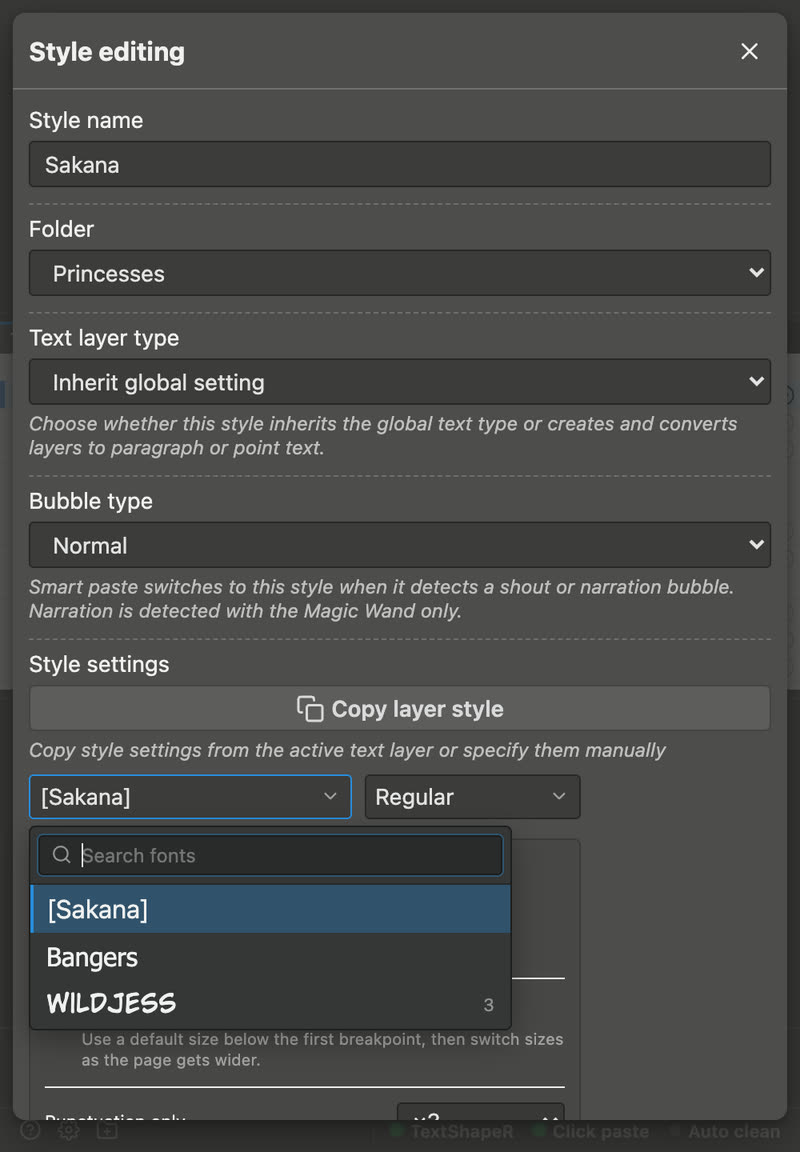
- Font and weight lists in the style editor show each entry in its own font, and the font list has a search field that ignores word order, spaces and accents.
Script and tabs
- Tabs, each with its own script, current line and PSD folder.
- Reorder tabs by dragging them. All tabs and the active one are kept when multi-tab mode is hidden.
- Tabs name themselves after their PSD folder, chapter heading or first sentence, until renamed by hand. New empty tabs use the first free number.
- Page and line highlights no longer drift after a resize, on bold or italic lines near the wrap limit, or on scripts with stray carriage returns.
- Recognizes
Page 12 :,Page 12 : title,Page 12 - title,[Page 12]and Markdown headings. Mentions of a page inside dialogue stay dialogue. - The line counter can reset on page markers.
- PSD navigation is serialized, and a page is recorded as opened only once Photoshop confirms it.
- Captured bubbles are bound to the current document and session.
Styles and typesetting
- Style size presets, and a shortcut to the next one.
- A shortcut toggles the selected style's stroke, keeping its size and colour. A style with a stroke shows a frame of that colour in the list.
- Lines made only of punctuation, like
?!, can be set at twice or three times the size. - Contextual alternates and the single-line composer in the style editor, with standard and contextual ligatures on for new styles.
- Styles reorder by dragging, and size fields accept commas and arrow keys.
- Distribute consecutive lines across selected text layers, in selection order.
- The + and - size buttons now work on layers resized with
Ctrl+T, and keep the line breaks. - Right-to-left is fixed: the direction reaches Photoshop and stays through every write, and styles keep their direction, composer and Arabic digits. TextShapeR keeps the diacritic offsets.
- Multi-bubble restores lines when selections are removed.
Settings and interface
- Search bar for the settings: by title, description, options or section, in your language or English, tolerating typos and synonyms.
Cmd/Ctrl+Ffocuses it and Escape clears it. - Tabs reorganized into General, Insertion, Script, Styles, Shortcuts, Appearance, Profiles and Font FindeR. They reopen on the last one used.
- Interface layout reworked: a bar picks the panel to edit, each element has its own switch, and each footer toggle can be hidden while keeping its state and shortcut.
- Help, Settings and page import are icon buttons in the footer, and the toggles become icons in a narrow panel.
- Ten themes, your own custom themes and background images, and an interface scale.
- Compact panel settings refined, and the panel is now in Arabic too.
- Project profiles, with separate styles, folders, settings, tabs, saved work and backgrounds.
- Clear TypeR's cache without touching your work.
Guides and help
- Hands-on What's new tour: 7 chapters, about 4 and a half minutes, on a practice page and script, available from Help and Settings > General.
- Basics walkthrough: 8 chapters, replacing the old first-time walkthrough. New users get one guide of 15 chapters, about 11 and a half minutes.
- Existing users, Legacy or UXP, only get What's new.
- A blue ring shows the real control, and the guide can be dragged, folded and skipped. Progress is kept, even if Photoshop closes.
- A step only passes on a gesture made during the run. What the TextShapeR star learns during the tour is undone afterwards.
- Redesigned, searchable Help, and "Did you know?" tips.
Import, export and data
- Import Photoshop
.tpltool presets as style folders, with font, size, leading, tracking, colour, anti-aliasing and alignment. A.tplhas no layer effects, so no stroke. - A folder's export includes its subfolders, and asks for the format: styles only (
.json), or with font files (.zip). - Exports can filter styles by font, and fonts that can't be found are reported.
- Saves go through temporary files with a last valid backup. Corrupt originals are kept, and a failed save offers a recovery export.
- Profile switching is blocked when pending changes can't be saved.
- Imports are validated before merging, cyclic folders are rejected, and a backup is made first.
- Size presets, disabled prefixes and all style fields are preserved on export, and styles without a folder are included.
- Failed JSON exports are reported, and the export dialog stays open.
- Batches are validated before creating layers, and restore Photoshop's history if they fail.
- Automatic localization and modal close guards are respected. Middle East settings apply only when saved.
Shortcuts
- Modifier-only shortcuts run on release, and not if another key joined them. A custom shortcut can extend them.
- The keep-size modifier works in any press order.
- New defaults: previous line
Ctrl+Shift+Enter, next pageCtrl+Alt+Enter, text sizeCtrl+Alt+UandCtrl+Alt+D, insert textCtrl+Alt+L. Unchanged old defaults move over, and customized ones are kept. - Settings warn when a combination is already used.
- Global mouse shortcuts, and numpad 1 to 9 selects styles when the panel has focus.
=and+count as the same key.- macOS: the UXP reader also reports the physical letter on layouts without Latin letters. Photoshop must be added to Input Monitoring in the system settings.
Compatibility and releases
- Rosetta launcher on Apple Silicon for Legacy, created by the macOS installer and by
fix_mac_rosetta.sh. - Modern and compatibility builds in one package: Photoshop 2020+ loads the modern one, older hosts the other. CC 2015 stays the minimum.
- Release identity, version and SHA-256 are validated before installing, and a failed install restores the previous one without touching your data.
- Old chunks stay available to a running panel during an update.
- Only stable, installable releases are offered, and a failed update check no longer looks like "up to date".
- Network requests are bounded, including downloads.
- Regression tests and release checks run in CI on Windows, macOS and Linux.